Manage customer notifications in one place with Nudge
Prepare messages for email, SMS, WhatsApp, push, and in-app. Send from the dashboard or let your product trigger them through the API.
Nudge brings together the message, the people who should receive it, and the channels you choose. For external delivery, connect a supported provider for each channel you use.
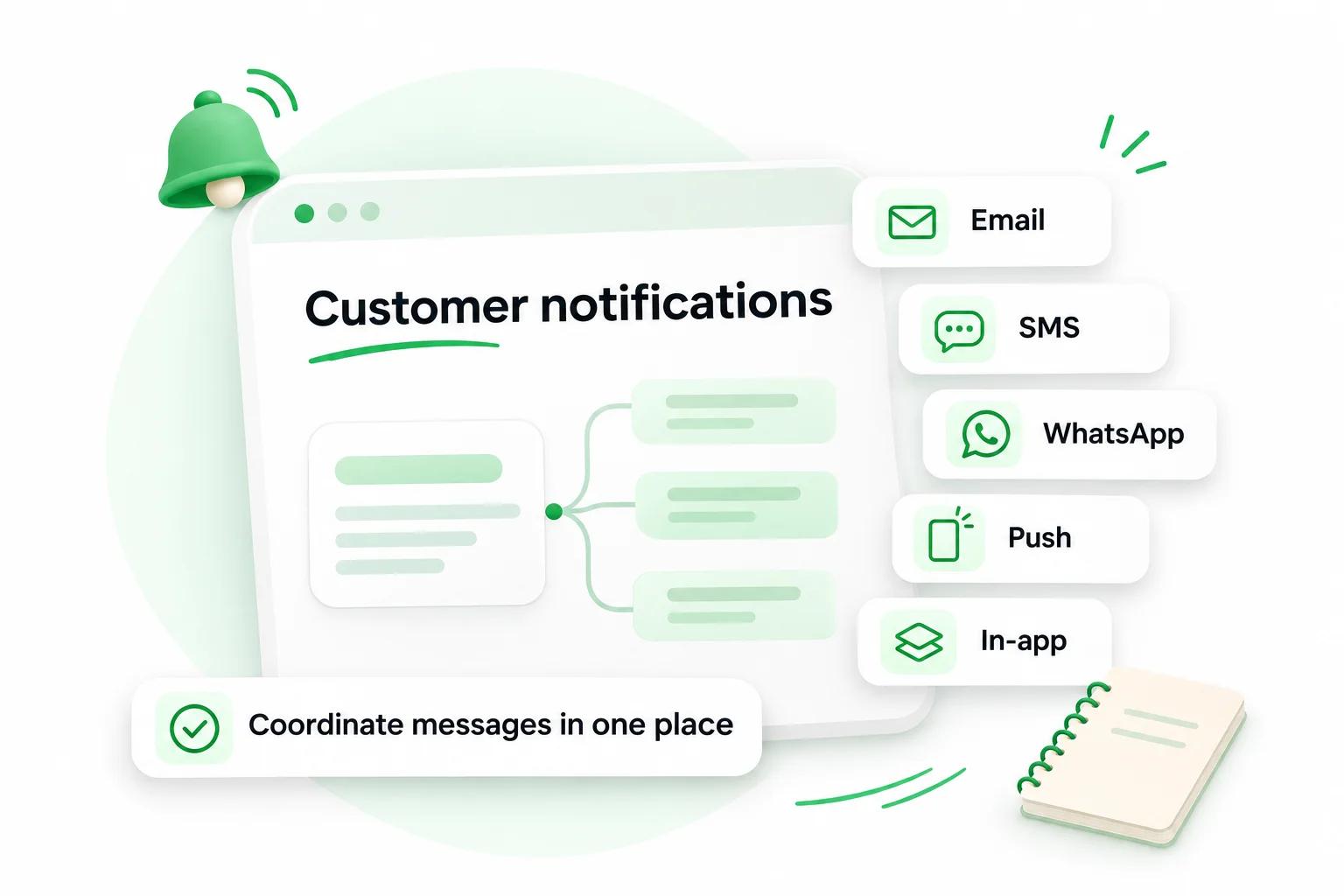
What your team can manage in Nudge
Set up the parts of a message you want to reuse, so each send starts with the right content, recipients, and channel settings.
Notification templates
Save the wording and layout for messages you send repeatedly. Use placeholders for details that change with each send, such as a customer’s name or reference number.
Customers and audiences
Send to a specific customer or use an audience you’ve set up. Choose the recipients based on who needs the update.
Channels and preferences
Choose which channels a message can use and configure the customer preferences that apply. Start with the channel your customers already use.
Connected delivery providers
Connect a supported provider account for external delivery. Set up its sender details and verify that it can send before using it for a live message.
Explore Nudge use cases
See how teams use the same platform for different kinds of customer messages.
Omnichannel communication
Choose the channel that fits each update and what you want customers to do next.
Transactional notifications
Send receipts, confirmations, and account updates when a business event occurs.
Real-time messaging
Send a time-sensitive alert or status update as soon as it’s ready.
Marketing campaigns
Plan a promotion or announcement, choose an audience, and schedule the send.
Developer flexibility
Configure and test a handler, then trigger it from your backend using the notification API.
How Nudge works
Prepare one reusable notification, choose how it starts, and follow it through delivery.
Prepare the notification
Choose the message, recipients, and channel. Save the template, sender, and provider settings together for reuse.
Where your team can start
A dashboard for day-to-day sends and an API for automation
Choose a starting point based on who sends the message today and how they decide when it goes out.
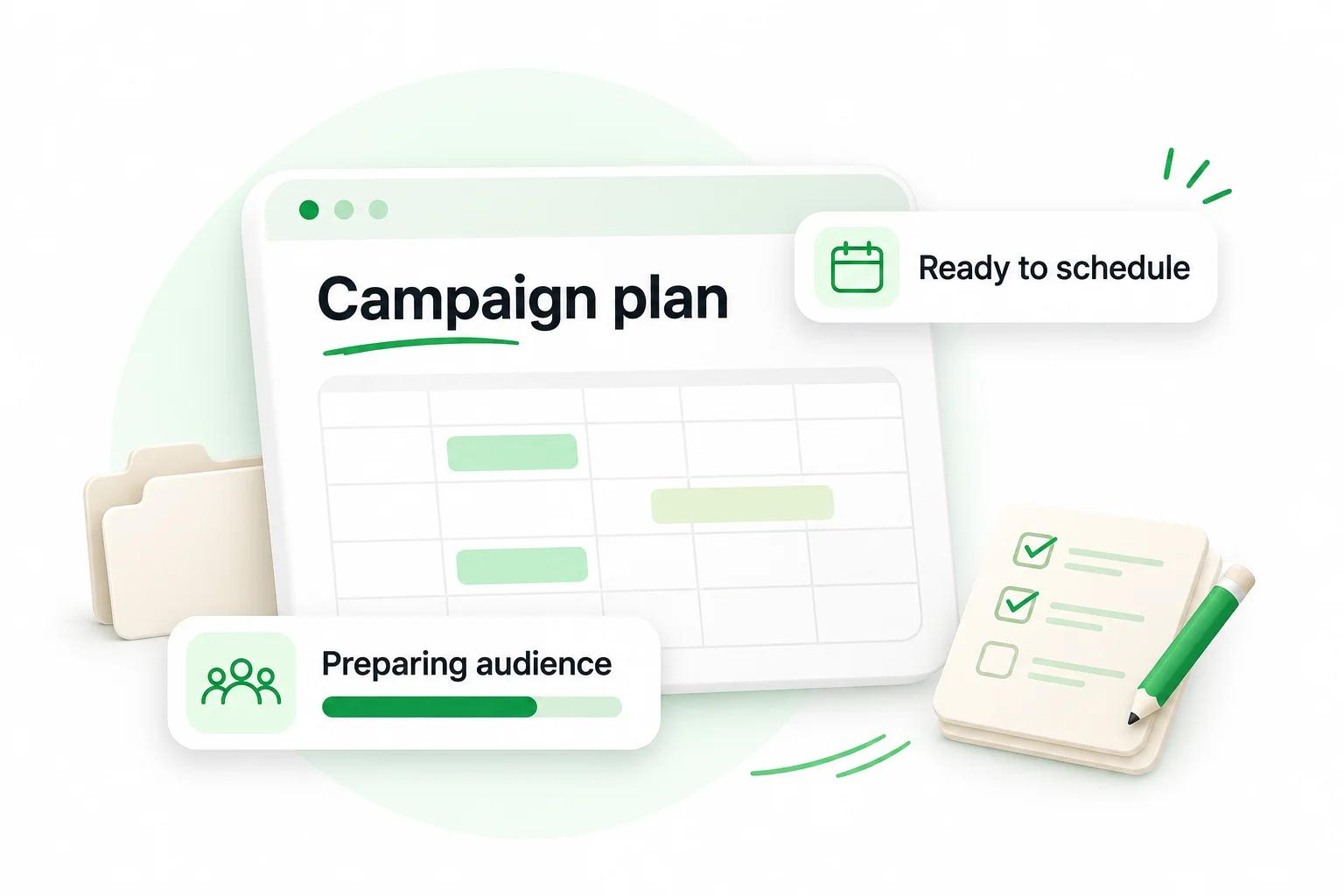
Marketing and growth
Choose an audience, prepare a promotion, and schedule it for the date and time your team has planned.
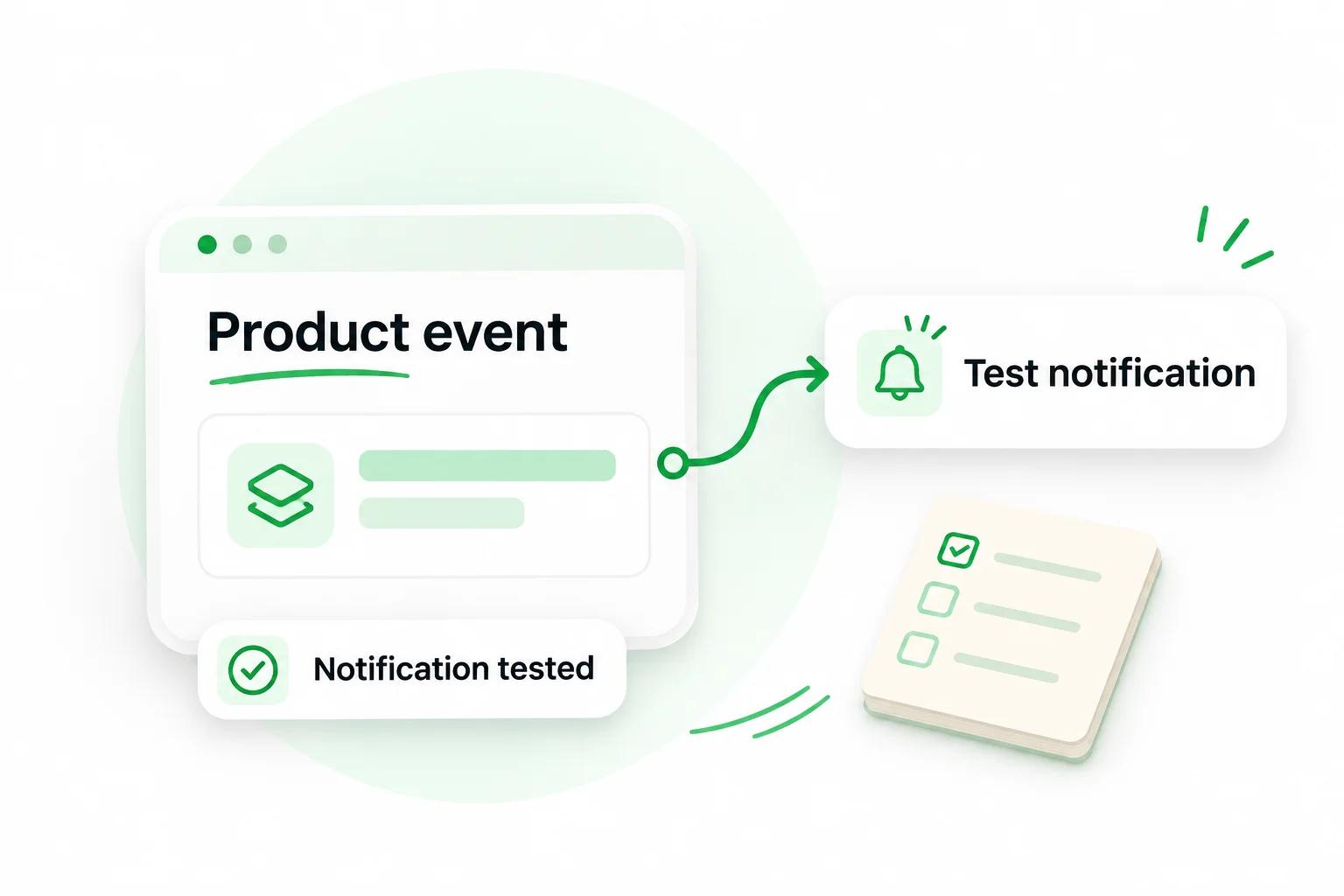
Product and engineering
Connect one event in your product to a reusable notification. Test with a known recipient before you connect the live event.
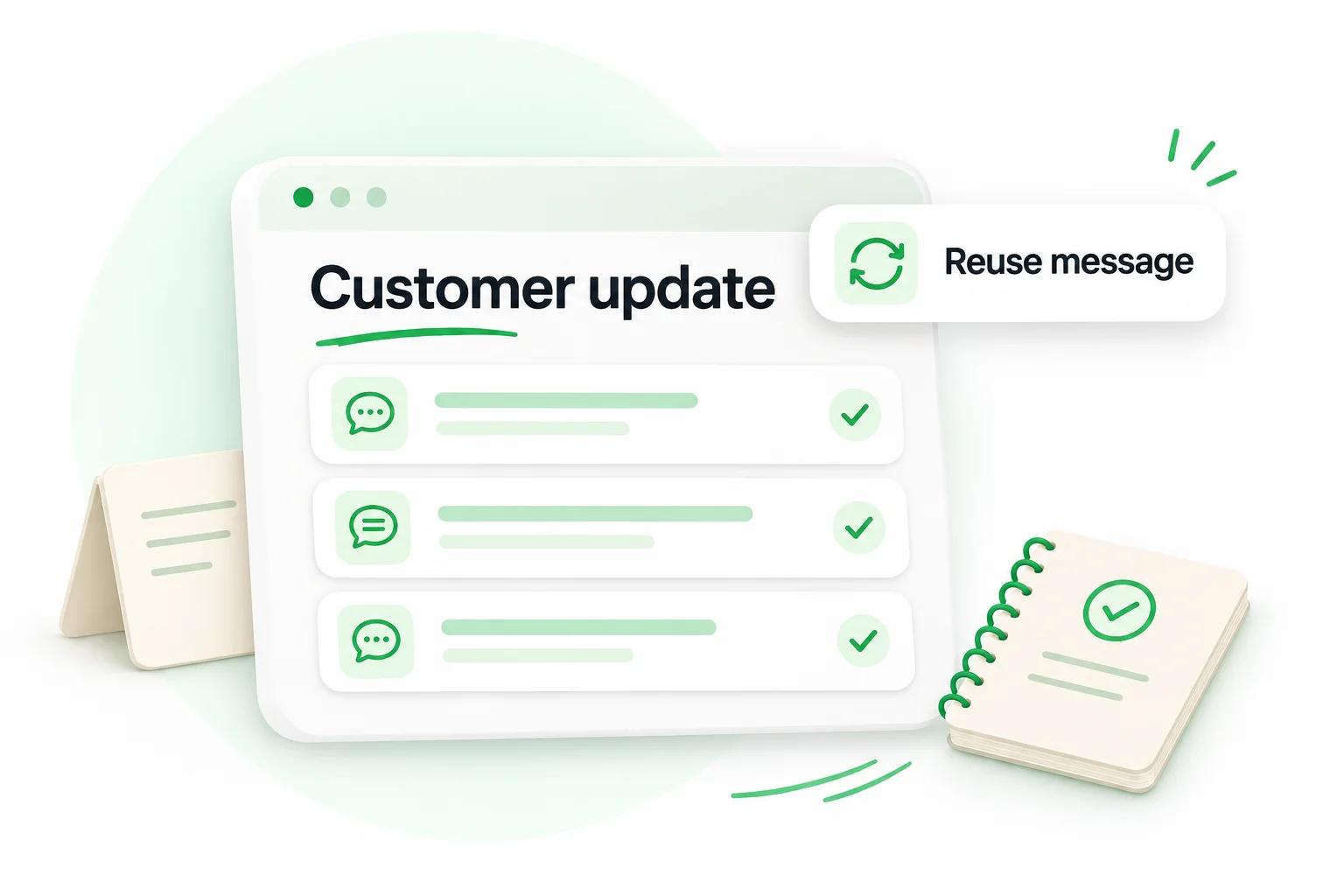
Business owners and operations
Pick one recurring customer update your team sends by hand. Prepare a reusable message and try it with the provider you already use, if it’s supported.
Bring one workflow to the pilot. Add more messages and channels as your team needs them.
What to prepare for each channel
Start with the channel you need today. Here’s what to check before you send a test.
Questions about getting started with Nudge
Nudge supports email, SMS, WhatsApp, push, and in-app notifications. The setup and available providers depend on the channel you choose.
Once the provider and message are set up, your team can send from the dashboard. A developer can connect the API when you want your product to send automatically.
Yes, if it’s a supported integration. Connect your provider account in Nudge and run a test with the sender you plan to use.
You can start with one channel and add others when a customer update calls for them. Each new channel needs its own message setup and any required provider connection.
A handler is a reusable setup for a notification. It holds the message template and channel settings so the dashboard or your product can use the same setup for future sends.
Yes. Add placeholders to the template for details that vary by recipient, such as a name or booking reference. Use a test recipient to make sure the details appear correctly.
Use an immediate dashboard send for an update that’s ready now, schedule a planned campaign, or use the API when your product should start the send after an event.
You can configure preferences for the topics and channels customers receive. Check which preferences apply to your message before using the workflow with a live audience.
Open the send record to review details such as the recipient count, channel, and available status. Delivery details depend on the channel and provider.
Start with one customer message you already send. Know who should receive it, when it should go out, and which channel you want to try first.
Bring one customer message to the pilot
Pick a message your team sends today. Start with one channel and test it with one recipient.
